

Computer Telephony Integration Salesforce Archives - gettectonic.com
Computer Telephony Integration Salesforce

Computer Telephony Integration Salesforce

What is Computer Telephony Integration in Salesforce? Computer telephony integration in Salesforce enhances communication and streamlines workflows by enabling users to handle calls, track call data, and access customer information within a unified platform. This integration is facilitated through VoIP (Voice over Internet Protocol) services. Understanding Computer Telephony Integration (CTI) Computer Telephony Integration (CTI) links a call center’s telephone systems to their business applications, allowing for better call management and control through business software. CTI in Salesforce connects computer and phone systems to streamline customer service and sales operations, providing several benefits: Additional Benefits of CTI in Salesforce Business Benefits of CTI CTI benefits businesses by: Salesforce CTI Tools Computer Telephony Integration Protocol CTI software uses VoIP to turn your computer into an extension of your phone, enabling interactive customer data access and one-click dialing. Getting Started with Salesforce CTI CTI is a key element of an omnichannel customer service strategy. It allows data to flow between computers, phones, and core systems like CRM. Key features include: How Salesforce CTI Works Salesforce CTI relies on integration patterns such as bidirectional sync and data aggregation. It creates a two-way communication link between Salesforce and the telephony system, while aggregating data on the user’s desktop with a softphone system. Creating Salesforce CTI with an Application Network Point-to-point integration can create challenges for IT teams and businesses, such as duplicate APIs, slow integration processes, and maintenance difficulties. Building Salesforce CTI with an application network, which uses API-led connectivity, solves these issues by: Conclusion Telephony integration in Salesforce, through CTI, significantly enhances communication, customer service, and sales operations. By leveraging advanced features and streamlined processes, businesses can improve their efficiency and customer experience. For more information on Salesforce services, contact Tectonic, a Salesforce Consulting Partner. Like1 Related Posts Who is Salesforce? Who is Salesforce? Here is their story in their own words. From our inception, we’ve proudly embraced the identity of Read more Salesforce Marketing Cloud Transactional Emails Salesforce Marketing Cloud Transactional Emails are immediate, automated, non-promotional messages crucial to business operations and customer satisfaction, such as order Read more Salesforce Unites Einstein Analytics with Financial CRM Salesforce has unveiled a comprehensive analytics solution tailored for wealth managers, home office professionals, and retail bankers, merging its Financial Read more AI-Driven Propensity Scores AI plays a crucial role in propensity score estimation as it can discern underlying patterns between treatments and confounding variables Read more
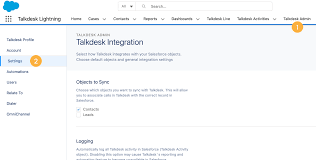
Read More
Talkdesk Dialer for Salesforce

Talkdesk Dialer for Salesforce

Talkdesk Dialer for Salesforce™ Guide Compatibility and ConfigurationTalkdesk Dialer for Salesforce™ is fully compatible with the Conversations app. It is crucial for the dialer to recognize the agent’s login session in the Salesforce Connector, also known as Salesforce’s phone widget or phone CTI. Ensure this connection is correctly configured by following the instructions in the article Please login in Salesforce Connector. Features and Dialing ModesTalkdesk Dialer for Salesforce enables agents and salespeople to automatically dial a list of Salesforce records, including Contacts, Leads, Accounts, Cases, and Opportunities. It offers two dialing modes: Preview Mode: Agents can review records before calls are initiated and choose to start the call or skip to another record.Power Mode: Calls are launched automatically one after the other, with a defined delay between calls.Getting StartedTo start using the dialer, follow these steps: Create a dialer list.Create a Talkdesk campaign.Add the dialer lists you want to call to the Talkdesk campaign.Start dialing.Creating a Dialer ListGo to Dialer Lists and click New.Select a Salesforce object (Contacts, Leads, Accounts, Cases, Opportunities) and choose multiple list views of that object to be part of the same dialer list.Set the following attributes:Type: Dialing or Do Not Call.Priority: Determines the order of calls when multiple lists are part of a campaign.Sorting Order: Choose any field from the Salesforce object to order the records.For more details, refer to How to use Salesforce Dialer Lists. Creating a Talkdesk CampaignEnsure you have Talkdesk Dialer for Salesforce creation permission. If not, follow the instructions in Setting up and Configuring Talkdesk Dialer for Salesforce. Navigate to the Talkdesk Campaigns tab in the Talkdesk Lightning app or click the Dialer button in a record list view. Click New Talkdesk Campaign and follow the wizard steps: Name and Description: Provide a name and description for your campaign.Dialing Mode: Choose either Preview or Power mode and configure the behavior.Preview Time: Set the time agents have to review record information before dialing.Delay Between Calls: In Power mode, set the time between the end of one call and the start of the next.When a Call Starts: Decide if the modal with record information should be open.Set the campaign’s start and end dates, time range, timezone, retry attempts for failed calls, and assign agents. Add up to 10,000 records from Dialing and Do Not Call lists. The records will be deduplicated based on phone numbers. Any records in both lists will not be added to the campaign. Configure campaign settings to reflect updates to dialer lists as long as the campaign status is not Finished. Editing a CampaignGo to the Talkdesk Campaigns list and click the edit button next to the campaign you want to edit.You can edit all attributes, except the object type, for campaigns that are Ready or Incomplete.Dialing Through a CampaignGo to the Talkdesk Campaigns page via the Dialer button in a list view or the Talkdesk Campaigns tab.Click the campaign name and then Start Dialing.Agents can pause and resume the campaign. The campaign ends for all agents when a user with permission clicks Finish.General Notes and ConsiderationsPermissions: Agents see campaign records based on their Salesforce permissions. Talkdesk permissions for creating and editing campaigns only apply on the Talkdesk Campaigns page.Campaign Statuses:Scheduled: Ready to start, not yet reached Start Date.Incomplete: Missing agents or dialer lists, cannot be dialed.Ready: Ready to be started by assigned agents.Running: Currently running, cannot be edited.Expired: Passed End Date but can be edited and rerun.Finished: Completed, cannot be edited or rerun.By following these guidelines, you can effectively use Talkdesk Dialer for Salesforce to enhance your dialing campaigns and improve sales and customer service efficiency. Like Related Posts Who is Salesforce? Who is Salesforce? Here is their story in their own words. From our inception, we’ve proudly embraced the identity of Read more Salesforce Marketing Cloud Transactional Emails Salesforce Marketing Cloud Transactional Emails are immediate, automated, non-promotional messages crucial to business operations and customer satisfaction, such as order Read more Salesforce Unites Einstein Analytics with Financial CRM Salesforce has unveiled a comprehensive analytics solution tailored for wealth managers, home office professionals, and retail bankers, merging its Financial Read more AI-Driven Propensity Scores AI plays a crucial role in propensity score estimation as it can discern underlying patterns between treatments and confounding variables Read more

Read More
gettectonic.com