
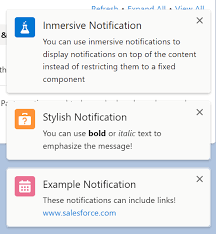
Salesforce Notifications
Standard Email Notifications By default, email notifications for Lead, Contact, Account, Case, and Opportunity are automatically enabled for each new Assignee, with no additional setup required. If you have disabled these notifications and want to re-enable them, or if you wish to set up other types of notifications, follow the steps outlined below. Notifications Setup Overview Notifications are configured per Assignee and per MatchGroup. If an Assignee belongs to multiple MatchGroups, they may have different notification settings for each group. Notifications must be enabled for each MatchGroup where the Assignee is assigned. Start by setting up the notification messages for the desired notification type, then enable the notifications in Super Round Robin (SRR). Prerequisites Setting Up Notification Messages For Mobile and Desktop To configure Mobile or Desktop in-app and push notifications, you first need to create a Custom Notification. Mobile and Desktop notifications can be enabled independently, so it’s recommended to create separate notifications for each. For Mobile only: Read more about Mobile Notifications in Salesforce For Email Super Round Robin includes pre-configured email templates for Lead, Contact, Account, Case, and Opportunity notifications, which require no further setup. For other objects, you need to add a new email template with the prefix SRR_Notification_ and store it in the SuperRoundRobin folder. Learn more in Customizing the Email Alerts > Adding Notification Templates for Other Objects. You can also: After making changes to the SRR email templates, purge the Platform Cache in the “Setup And Status” tab. All SRR email templates should be stored in the SuperRoundRobin folder. For SMS To send SMS notifications, ensure you have an Email-to-SMS provider. No further configuration for notification messages is needed. Enabling Notifications in SRR Notification settings are configured in the Assignee’s profile. You can set these while creating a new Assignee or editing an existing one. Access existing Assignees via their MatchGroup or from the Assignee Summary tab. Steps: Troubleshooting Like Related Posts Who is Salesforce? Who is Salesforce? Here is their story in their own words. From our inception, we’ve proudly embraced the identity of Read more Salesforce Marketing Cloud Transactional Emails Salesforce Marketing Cloud Transactional Emails are immediate, automated, non-promotional messages crucial to business operations and customer satisfaction, such as order Read more Salesforce Unites Einstein Analytics with Financial CRM Salesforce has unveiled a comprehensive analytics solution tailored for wealth managers, home office professionals, and retail bankers, merging its Financial Read more AI-Driven Propensity Scores AI plays a crucial role in propensity score estimation as it can discern underlying patterns between treatments and confounding variables Read more


