Salesforce Reports Archives - gettectonic.com - Page 2
Salesforce Success Story

Case Study: Salesforce Innovation for Hospitality

Major hospitality management firm, moves to the cloud and adopts Google Cloud and Salesforce to improve operational insights and decision-making. Tectonic assisted them to move to the cloud and obtatin quicker, actionable insights with business intelligence. Salesforce Innovation for Hospitality.

Read More
Row-Level Formulas in Salesforce

Row-Level Formulas in Salesforce

Mastering Row-Level Formulas in Salesforce Reports What Are Row-Level Formulas? Row-level formulas perform calculations on individual records in your report, displaying results for each row. Unlike summary formulas that aggregate data across records, row-level formulas analyze one record at a time. Key Characteristics Creating a Row-Level Formula: Step-by-Step 1. Build Your Base Report 2. Add the Formula Column 3. Writing the Formula 4. Finalize & Save Practical Applications Row-level formulas help answer critical business questions: Important Limitations Be aware of these constraints when working with row-level formulas: Best Practices Troubleshooting Common Issues Problem: Formula Not Calculating Correctly Problem: “Too Many Fields” Error Problem: Formula Validation Fails Advanced Techniques For more sophisticated analysis: Permission Requirements To create and modify row-level formulas: Conclusion Row-level formulas provide powerful, granular analysis capabilities in Salesforce reports. While they have specific limitations, their ability to perform record-by-record calculations makes them indispensable for detailed operational reporting. By mastering these formulas, you can unlock deeper insights into your business processes while maintaining data accuracy and relevance. Like Related Posts Who is Salesforce? Who is Salesforce? Here is their story in their own words. From our inception, we’ve proudly embraced the identity of Read more Salesforce Marketing Cloud Transactional Emails Salesforce Marketing Cloud Transactional Emails are immediate, automated, non-promotional messages crucial to business operations and customer satisfaction, such as order Read more Salesforce Unites Einstein Analytics with Financial CRM Salesforce has unveiled a comprehensive analytics solution tailored for wealth managers, home office professionals, and retail bankers, merging its Financial Read more AI-Driven Propensity Scores AI plays a crucial role in propensity score estimation as it can discern underlying patterns between treatments and confounding variables Read more


Read More

Salesforce Reports Explained

Salesforce Reports: A Complete Guide to Data Analysis & Insights What Are Salesforce Reports? Salesforce Reports empower users to access, analyze, and share critical business data stored in Salesforce. They transform raw data into actionable insights, helping teams track performance, identify trends, and make data-driven decisions. Reports can be customized, visualized in dashboards, and shared across teams for better collaboration. Key Types of Salesforce Reports Salesforce offers four main report types, each suited for different analytical needs: 1. Tabular Reports 2. Summary Reports 3. Matrix Reports 4. Joined Reports How to Create & Customize Reports Step 1: Navigate to the Reports Tab Step 2: Customize Your Report Step 3: Save & Share Advanced Analysis with Salesforce Reports Einstein Analytics Dynamic Filters Scheduled Reports Best Practices for Effective Reporting ✅ Define a Clear Purpose – What decision will this report drive?✅ Keep It User-Friendly – Use charts, summaries, and clear labels.✅ Ensure Data Accuracy – Regularly review filters & formulas.✅ Share Strategically – Grant access only to relevant stakeholders.✅ Automate Where Possible – Schedule reports to save time. Conclusion: Unlock the Power of Salesforce Reports Salesforce Reports turn raw data into strategic insights, helping businesses track performance, optimize processes, and drive growth. By mastering report types, customization, and sharing, teams can make faster, smarter decisions. Need help? Explore Salesforce’s Report Builder or check out Trailhead for hands-on training! Like Related Posts Who is Salesforce? Who is Salesforce? Here is their story in their own words. From our inception, we’ve proudly embraced the identity of Read more Salesforce Marketing Cloud Transactional Emails Salesforce Marketing Cloud Transactional Emails are immediate, automated, non-promotional messages crucial to business operations and customer satisfaction, such as order Read more Salesforce Unites Einstein Analytics with Financial CRM Salesforce has unveiled a comprehensive analytics solution tailored for wealth managers, home office professionals, and retail bankers, merging its Financial Read more AI-Driven Propensity Scores AI plays a crucial role in propensity score estimation as it can discern underlying patterns between treatments and confounding variables Read more

Read More
better data better forecast

Joined Report in Salesforce

What is a joined report in Salesforce? A joined report in Salesforce consists of up to five report blocks , which you add to the report to create multiple views of your data. For each block, you can add regular and summary fields, create standard and cross-block custom summary formulas, apply filters, and sort columns.  A joined report can contain data from multiple standard or custom report types. What is the drawback of joined reports in Salesforce? Salesforce Joined report limitations A joined report in Salesforce is a report that allows you to show data that shares a relationship with one or more objects. Joined reports are often used when objects are not in parent-child relationships, such as Accounts and Opportunities. Advantages of Using Joined Reports What report types can be converted into joined reports? Like Related Posts Who is Salesforce? Who is Salesforce? Here is their story in their own words. From our inception, we’ve proudly embraced the identity of Read more Salesforce Marketing Cloud Transactional Emails Salesforce Marketing Cloud Transactional Emails are immediate, automated, non-promotional messages crucial to business operations and customer satisfaction, such as order Read more Salesforce Unites Einstein Analytics with Financial CRM Salesforce has unveiled a comprehensive analytics solution tailored for wealth managers, home office professionals, and retail bankers, merging its Financial Read more AI-Driven Propensity Scores AI plays a crucial role in propensity score estimation as it can discern underlying patterns between treatments and confounding variables Read more

Read More
Summary Formulas and Row Level Formulas

Summary Formulas and Row Level Formulas

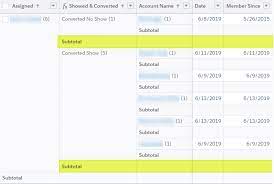
Salesforce report formulas serve various purposes, from grouping records to performing calculations and comparing data. In the Salesforce Report Builder, you’ll encounter two distinct types of formulas: Summary Formulas and Row-Level Formulas. Although they may sound similar, they serve different functions. Summary Formulas operate across multiple records, displaying their results at the bottom of a column. Conversely, Row-Level Formulas pertain to a single record and display their results directly on the corresponding row. Let’s dip into examples of both Row-Level and Summary Formulas to understand their applications in Salesforce reports. Example 1: Total Opportunity Amount Suppose your boss requests a report showing the total Opportunity Amount broken down by Country. In this scenario, you wouldn’t require a Summary Formula field. Instead, simply select the Opportunity Amount field and check the SUM checkbox. If you include a grouping based on Country, the report will automatically generate a summary line. Example 2: Average Monthly Case Volume for a Specific Product Now, imagine the support team asks for a report indicating the monthly average of Cases for a specific Product over the past year. Here, you’d utilize a Summary Formula. Ensure the Product field is set as a ‘Group By Row’ field, then select Summary Formula from the Columns drop-down. Create the formula by dividing the Record Count by 12 (the number of months in a year), and assign a column name, such as “Monthly Avg Cases.” Example 3: Checking Field Value Matches For another scenario, let’s say you’re tasked with verifying that at the Case level, the Billing State matches the Shipping State of the associated Account. With Row-Level formulas, you can accomplish this without creating a new field. Add a Row-Level Formula from the Columns drop-down, then create an IF statement comparing the Billing State to the Shipping State, resulting in either 0 (not matching) or 1 (matching). It’s valuable to note some considerations regarding Row-Level formulas, such as the limitation of one Row-Level formula per report and a maximum of five referenced fields. Additionally, Row-Level formulas cannot be used for cross-filters or buckets. Refer to Salesforce documentation for more details on restrictions. In conclusion, understanding the distinction between Row-Level and Summary Formulas empowers you to leverage the appropriate formula type effectively in Salesforce reports, optimizing your data analysis and decision-making processes. Like Related Posts Who is Salesforce? Who is Salesforce? Here is their story in their own words. From our inception, we’ve proudly embraced the identity of Read more Salesforce Marketing Cloud Transactional Emails Salesforce Marketing Cloud Transactional Emails are immediate, automated, non-promotional messages crucial to business operations and customer satisfaction, such as order Read more Salesforce Unites Einstein Analytics with Financial CRM Salesforce has unveiled a comprehensive analytics solution tailored for wealth managers, home office professionals, and retail bankers, merging its Financial Read more AI-Driven Propensity Scores AI plays a crucial role in propensity score estimation as it can discern underlying patterns between treatments and confounding variables Read more
Read More
Salesforce Document Generation

Generating Documents in Salesforce

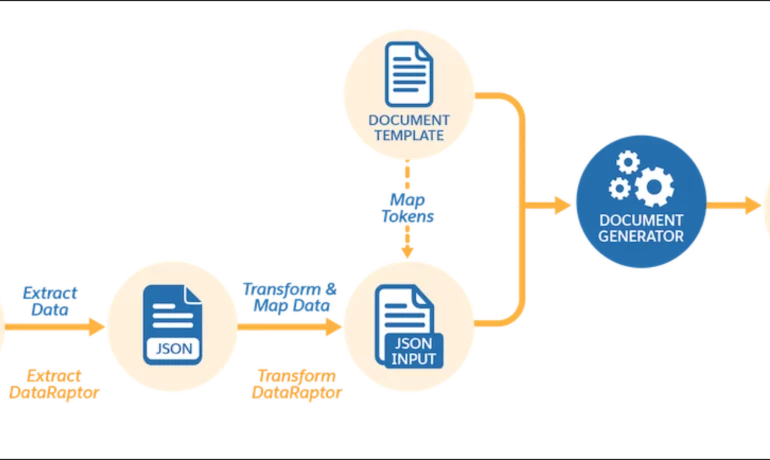
Salesforce document generation poses a challenge for businesses, given the intricacies of integration involved. Fortunately, a variety of tools are available for generating documents in Salesforce, and Tectonic is well-equipped to assist in their successful implementation. Salesforce Industries Document Generation empowers businesses to craft and manage accurate documents linked to standard Salesforce objects, encompassing contracts, opportunities, orders, quotes, and custom objects. For a more dynamic approach, Salesforce OmniStudio Document Generation facilitates the creation of documents using Microsoft Word and Microsoft PowerPoint templates. These templates can incorporate values from any JSON-based data within the text, including data sourced from various Salesforce objects. This versatile tool enables the generation of contracts, proposals, quotes, reports, non-disclosure agreements, service agreements, and more. Salesforce Industries Document Generation seamlessly integrates with Vlocity Insurance, Vlocity Health, communications, media, energy, utilities, government, and beyond. Vlocity Analytics, another valuable component, offers pre-built measurement tools that seamlessly integrate with Salesforce Reports, Dashboards, and Einstein. The Salesforce AppExchange boasts an extensive array of over 200 document generation tools. Your Salesforce partner can assist in selecting, installing, and implementing the most suitable options based on your business requirements. With Document Generation, you can generate contracts, proposals, quotes, reports, non-disclosure agreements, job offers, service agreements, and so on. You can generate documents using the specified sample client-side or server-side OmniScripts. You can also create your own OmniScripts by cloning and customizing the sample OmniScript to generate documents. Client-Side document generation is a synchronous process that results in a downloadable preview of the generated documents. You can generate documents from Microsoft Word (.docx), Microsoft PowerPoint (.pptx), and Web templates. These templates can include values from any JSON-based data in the text, including data from any Salesforce object. You can optionally convert the resulting documents to .pdf format. Server-Side document generation is available in both the OmniStudio Foundation and Salesforce Industries packages. Server-Side document generation is an asynchronous process that’s best for large and rendering-heavy documents and for document generation in batches. The Server-Side document generation service is secure and scalable and is hosted on Salesforce Hyperforce. The generated document is stored in your Salesforce org, and is attached to the object for which it’s generated. You can use Apex Classes, sample Integration Procedures, or a sample OmniScript to generate documents. Client-Side document generation supports Customer Community Plus, Customer Community, and Partner Community users to generate documents using client-side OmniScripts. Server-Side document generation supports Customer Community Plus, Customer Community, and Partner Community users to generate documents using the singleDocxServersideLwc server-side OmniScript. With the right licenses, Document Generation is available in the Salesforce Industries package. Metering measures resource utilization levels and throttling controls resource access and use based on defined rules. Metering measures the number of server-side documents that are generated by an org hourly and daily. The default hourly and daily limits for processing server-side document generation requests are 1,000 per org and 24,000 per org respectively. Throttling maintains consistency and resilience of the server-side document generation service by managing incoming server-side document generation requests from multiple orgs. Throttling can also prevent service degradation caused by high volume of requests at peak hours by blocking requests that exceed the default limits. The request details are saved in the Document Generation Processes entity. You can retrieve the blocked requests and later retry the server-side document generation. No matter what your specific document generation needs, Tectonic simplifies the process of getting your system up and running seamlessly, whether it’s through Salesforce Quickstarts or comprehensive implementation services. Content updated in 2February 2024, Shannan Hearne. Like1 Related Posts Who is Salesforce? Who is Salesforce? Here is their story in their own words. From our inception, we’ve proudly embraced the identity of Read more Salesforce Marketing Cloud Transactional Emails Salesforce Marketing Cloud Transactional Emails are immediate, automated, non-promotional messages crucial to business operations and customer satisfaction, such as order Read more Salesforce Unites Einstein Analytics with Financial CRM Salesforce has unveiled a comprehensive analytics solution tailored for wealth managers, home office professionals, and retail bankers, merging its Financial Read more AI-Driven Propensity Scores AI plays a crucial role in propensity score estimation as it can discern underlying patterns between treatments and confounding variables Read more

Read More
gettectonic.com