
Using query parameters and Salesforce merge fields, you can create personalized prefill links that automatically populate forms with user information from Salesforce.
Adding Dynamic Prefill Links in Salesforce Emails
- Generate Your Prefill Link:
In Jotform’s Form Builder, navigate to Publish > Prefill > Salesforce Prefill, and copy your prefill link. For detailed steps, refer to the guide on how to prefill your form using Salesforce data. - Create/Edit an Email Template in Salesforce:
In Salesforce, open or create an email template. Paste your prefill link in the email and append the query string?jf_field=sf_fieldto the URL. For example:bashCopy codehttps://form.jotform.com/1234567890/prefill/73616d706c65?jf_field=sf_field - Customize the Link:
Replacejf_fieldwith your form field’s unique name (found in Jotform’s Form Builder) andsf_fieldwith the Salesforce merge field. For example:bashCopy codehttps://form.jotform.com/1234567890/prefill/73616d706c65?email={{{Recipient.Email}}}For multiple parameters, separate each query with an ampersand (&):bashCopy codehttps://form.jotform.com/1234567890/prefill/73616d706c65?email={{{Recipient.Email}}}&phone={{{Recipient.Phone}}} - Save and Use the Template:
Once saved, Salesforce will automatically insert the relevant data when sending emails. When recipients click on the link, the pre-filled form will include the data from the merge fields.
Using Dynamic Prefill Links in Salesforce Console
- Access Object Manager:
Go to your Salesforce app’s Setup page, then open Object Manager. - Create a New Button or Link:
Edit an object and add a new button or link by selecting New Button or Link. - Configure the Link:
- Set the Content Source to “URL.”
- Insert your form’s prefill link with the necessary query parameters. Use Select Field Type and Insert Field to generate Salesforce merge fields.
- Add to Page Layouts:
After saving, you can add the newly created custom links to the page layouts in Salesforce, making them easily accessible.
By following these steps, you can dynamically populate forms with Salesforce data, streamlining data entry and improving user experience.

Who is Salesforce? Here is their story in their own words. From our inception, we've proudly embraced the identity of Read more

Salesforce Marketing Cloud Transactional Emails are immediate, automated, non-promotional messages crucial to business operations and customer satisfaction, such as order Read more

Salesforce has unveiled a comprehensive analytics solution tailored for wealth managers, home office professionals, and retail bankers, merging its Financial Read more
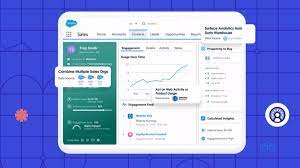
AI plays a crucial role in propensity score estimation as it can discern underlying patterns between treatments and confounding variables Read more