
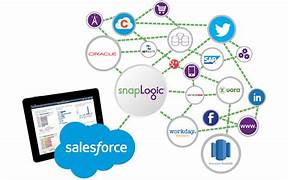
Salesforce and SnapLogic integrations couldn’t be easier with the Tray platform’s robust Salesforce and SnapLogic connectors, which can connect to any service without the need for separate integration tools.
Salesforce provides customer relationship management service software, and has a complementary suite of enterprise applications as well. These are focused on customer service, marketing automation, analytics, and application development. It is the market leader in CRM solutions.
The latest Salesforce connector v8.7 exposes the v46.0 of Salesforce’s REST API. More information can be found on their primary API documentation (v1) site.
Encountering issues while authenticating with Salesforce, especially during the integration of a third-party app like Tray, may result from Salesforce blocking the application.
Salesforce’s default settings or specific organizational security policies can automatically block third-party apps that administrators have not pre-authorized. This is a standard precaution to prevent unauthorized access.
Steps to Unblock an App in Salesforce:
- Log in to your Salesforce account.
- Navigate to Platform Tools from the Home menu.
- Under Platform Tools, select ‘Apps’, then choose ‘Connected Apps’.
- Proceed to ‘Connected Apps OAuth Usage’.
- In the list of apps, locate ‘Tray’.
- In the Actions column, check the status of Tray.
- If Tray is blocked, an option to ‘Unblock‘ will appear.
- Click ‘Unblock‘ to grant Tray access.
Use cases
In each of these examples,
- Data transformation, mapping, and filtering are crucial.
- The Boolean and Branch connectors are often used for decision-making and data filtering.
- The Script connector or JSON Transformer can be used for more complex data transformations.
- When dealing with large datasets, consider using the bulk operations (
bulk_update_records,bulk_upsert_records) for better performance.
Lead Scoring and Prioritization
Objective: Automatically score and prioritize leads based on their attributes and activities.
Steps:
- Trigger: Use the
record_create_updatetrigger for the Lead object. - Fetch Lead Data: Use the
find_recordsoperation to get full lead details. - AI-Powered Scoring: Use the Merlin functions connector with the
classify textoperation to analyze lead description and assign a category. - Data Enrichment: Use an external data enrichment service to get additional company information.
- Calculate Score: Use a Script connector to calculate the final lead score based on AI classification and enriched data.
- Update Lead: Use the
update_recordoperation to update the lead’s score and priority in Salesforce.
This example leverages AI for lead classification while combining it with traditional data processing for a comprehensive lead scoring system.

Who is Salesforce? Here is their story in their own words. From our inception, we've proudly embraced the identity of Read more
Salesforce Marketing Cloud Transactional Emails are immediate, automated, non-promotional messages crucial to business operations and customer satisfaction, such as order Read more

Salesforce has unveiled a comprehensive analytics solution tailored for wealth managers, home office professionals, and retail bankers, merging its Financial Read more
AI plays a crucial role in propensity score estimation as it can discern underlying patterns between treatments and confounding variables Read more


